
You open the report and see twenty red rows, each with a different web address. A Search Console report that lists twenty failing URLs gives no order for fixing them.
Core Web Vitals are three real-world metrics for loading, interactivity and visual stability. Largest Contentful Paint (LCP) measures how fast the main content appears, and Interaction to Next Paint (INP) measures how quickly the page responds to a tap or click.
Cumulative Layout Shift (CLS) measures how much content jumps while the page loads. Google Search Central says these metrics match what its core ranking systems seek to reward, along with other page experience signals. Content relevance still decides most rankings, and page experience often breaks ties when content quality is close.
Pages that pass all three thresholds saw users 24% less likely to leave mid-load, which shows why page performance matters. This article gives you a triage order for multiple failures. Start with the URL group that has the most traffic and the worst metric, not the longest list.
Key Takeaways
- Core Web Vitals are LCP, INP and CLS, and each one has its own Good threshold.
- Field data from real users decides whether a URL passes or fails.
- A good lab score can hide a failing field result.
- Rank failing groups by traffic first, then by metric, then by effort.
- INP fails for many sites, so it is often the metric to fix first.
How to Test Core Web Vitals and Read the Results
You can run a Core Web Vitals test for free with PageSpeed Insights, a tool from Google. A green Lighthouse score can sit beside a failing field data result, so read the field data first.
Field data means real-user measurements collected from Chrome users over a rolling 28-day window. Lab data is different. It comes from Lighthouse test results in a simulated setting.
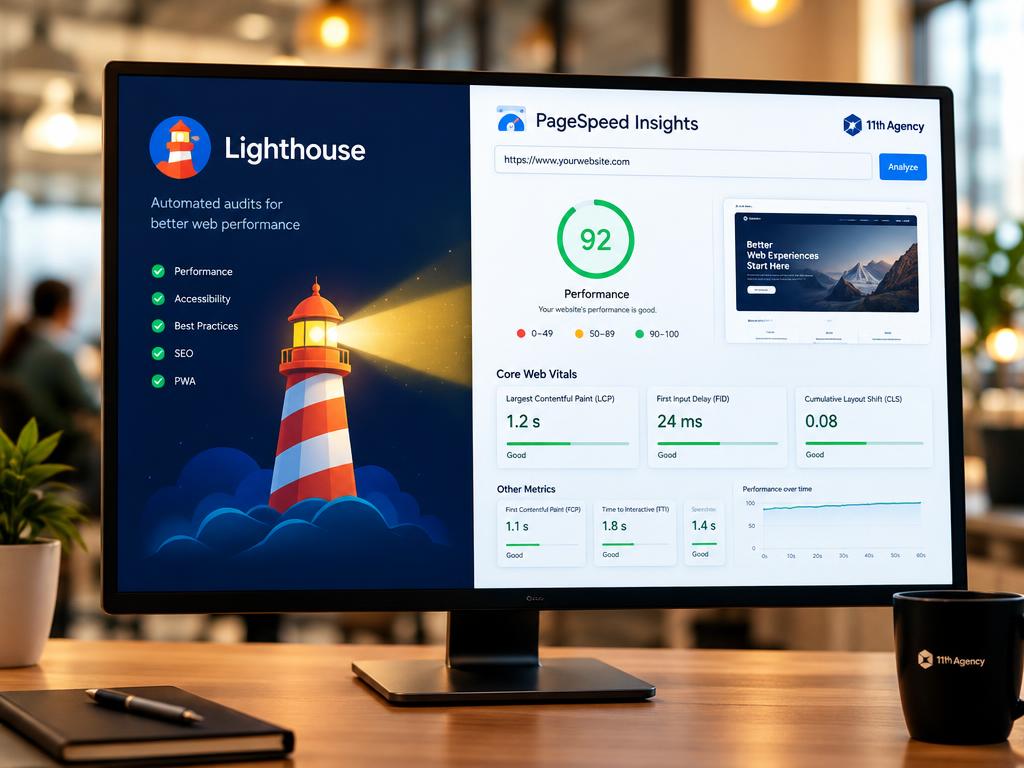
Google checks each metric against a threshold and labels it Good, Needs Improvement or Poor. A URL passes only when all three metrics are Good at the 75th percentile of real visits.
Field data decides whether a URL passes. Lab data only helps explain why it failed.
Read the Core Web Vitals report by checking each metric’s status against its threshold. The table below shows the good value for each metric and the share of sites that pass it in CrUX.
| Metric | Good value | CrUX pass rate |
|---|---|---|
| LCP | 2.5 seconds or less | 68% |
| INP | 200 milliseconds or less | 57% |
| CLS | 0.1 or less | 78% |
A good lab result does not guarantee good real-user Core Web Vitals. Low-traffic URLs often lack enough samples to appear in CrUX, the Chrome User Experience Report.
When that happens, the report shows origin-level data for the whole site. Compare the field 75th-percentile value for each metric with its threshold before you change anything.
Reading Search Console Failure Groups
A group labeled Poor can hold a page that loads quickly, because Search Console groups pages by similarity. The report also splits results into the mobile and desktop reports, and those two views need separate work.
Each failing URL group shows whether LCP, INP or CLS caused the failure. Search Console classifies each page as Good, Needs Improvement or Poor.
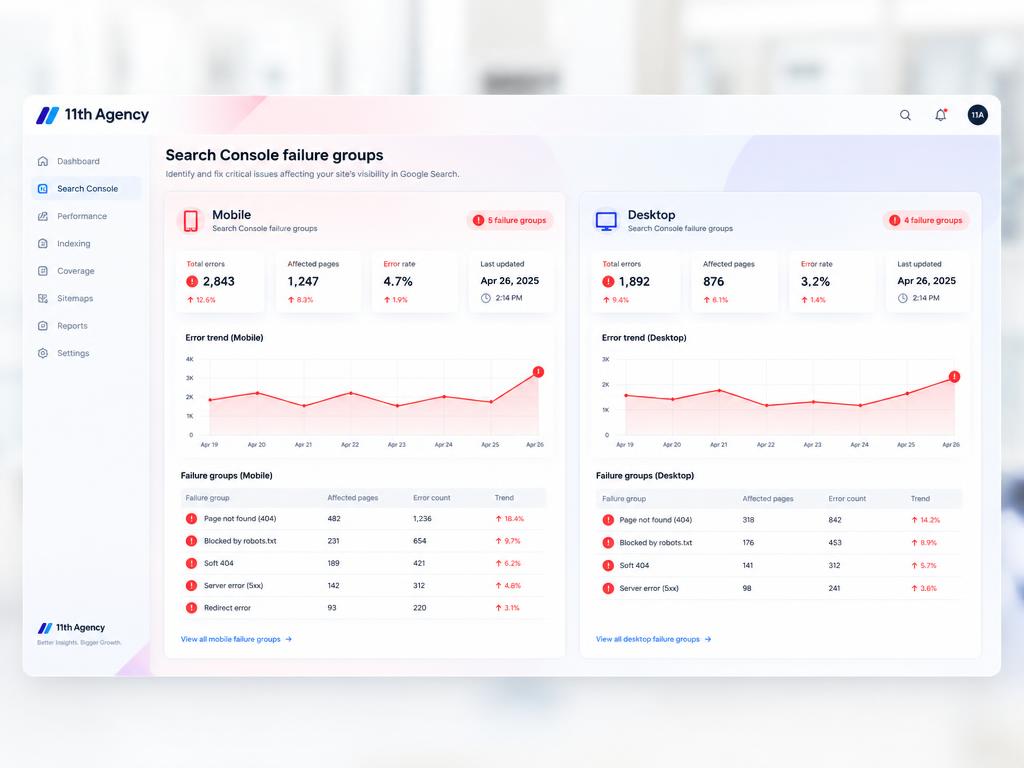
Why a Failing Group Is Not the Same as a Slow Page
A URL inside a failing group is not always slow itself. Search Console groups pages when it lacks enough data to judge each one alone.
Low-traffic pages may have no URL data at all. The group label is a clue, not proof of a slow page. Fast, mobile-friendly sites also help search engine optimized websites hold their rankings.
Opening a Group to Find the Affected URLs
Open a group to see the URLs it holds. Check the mobile and desktop reports separately, since a page can fail on one and pass on the other.
- Open the Core Web Vitals report in Search Console.
- Choose the mobile report and note each failing group.
- Open a group and copy its example URLs.
- Check one sample URL in PageSpeed Insights.
- Repeat the steps in the desktop report.
A group often shares one template, such as a product page layout. Check whether that template causes the failure before you touch each URL. Test the template with the highest traffic in the group before you touch the others.
Ranking Fixes by Metric, Traffic and Effort
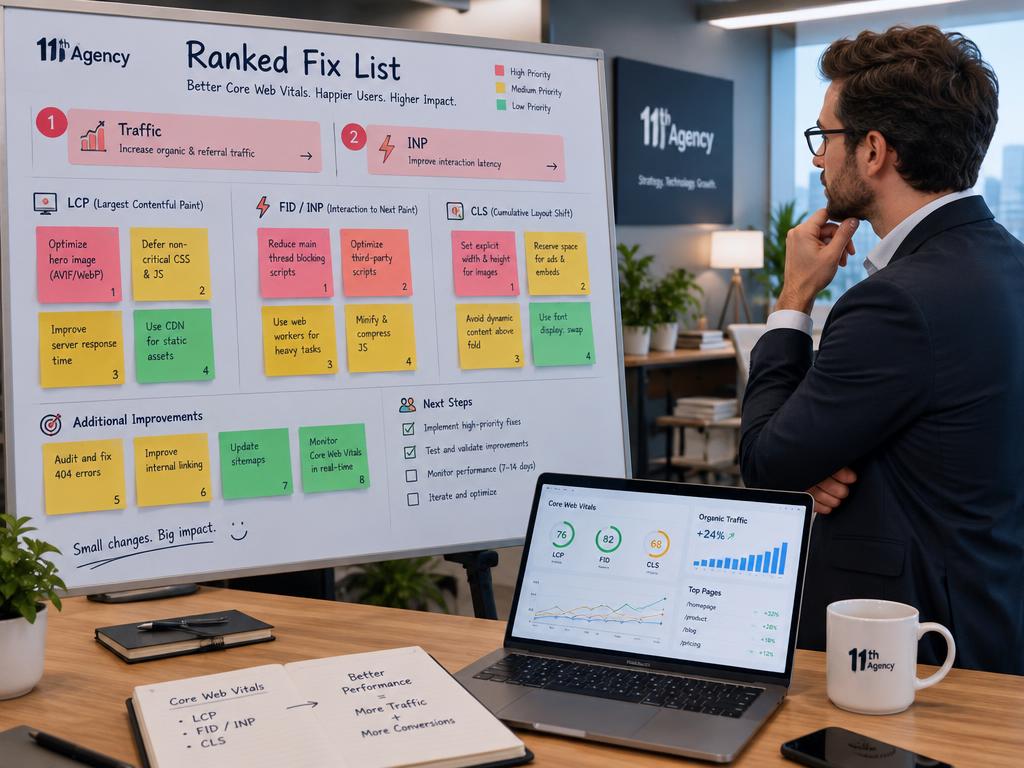
Start with the page that earns the most search traffic and has the worst field value. Traffic sets the order, the metric sets the choice, and effort breaks ties.
| Factor | Question to ask | Example |
|---|---|---|
| Traffic | How many visits does this URL group get? | A product template with the most organic visits |
| Metric | Which metric fails most in field data? | 43% of websites fail the INP threshold |
| Effort | Can a small change fix it this week? | Deferring one tag, not a full rebuild |
Ranking Failures by Traffic and Severity
Rank each failing group by its search visits first. Then check how far its field value sits past the threshold.
A template that earns ten times the visits of another deserves the first fix, even if its value is only slightly worse. Severity matters after traffic, not before it.
Choosing a Metric to Fix First
Fix INP first when it fails on your top template, since it has the lowest pass rate. INP replaced FID as a Core Web Vital in March 2024. It measures responsiveness across the whole visit, not only the first interaction.
DebugBear recommends breaking up long tasks with yielding. A task over 50 milliseconds counts as a long task. The Scheduler API’s scheduler.yield() breaks up long tasks.
Sorting Quick Fixes From Large Rebuilds
Quick fixes include deferring non-critical scripts and moving low-priority work to requestIdleCallback. The Long Animation Frames API helps you find the slow scripts behind a failing INP.
Large rebuilds take weeks, so save them for templates that still fail after quick fixes. Scope drives cost in big projects, which is why law firm website design costs vary so widely by feature. Put the highest-traffic template with a failing INP at the top of the fix list.
What Causes Cumulative Layout Shift and How to Reduce It
A button that moves two pixels as a page loads is enough to cause a misclick and a CLS penalty. Cumulative Layout Shift, or CLS, measures how much visible content moves without warning. Each shift is scored by its impact and distance, and a good CLS is 0.1 or less.
A layout shift happens when a visible element changes position between two frames. Shifts within 500 milliseconds of user input do not count toward CLS.
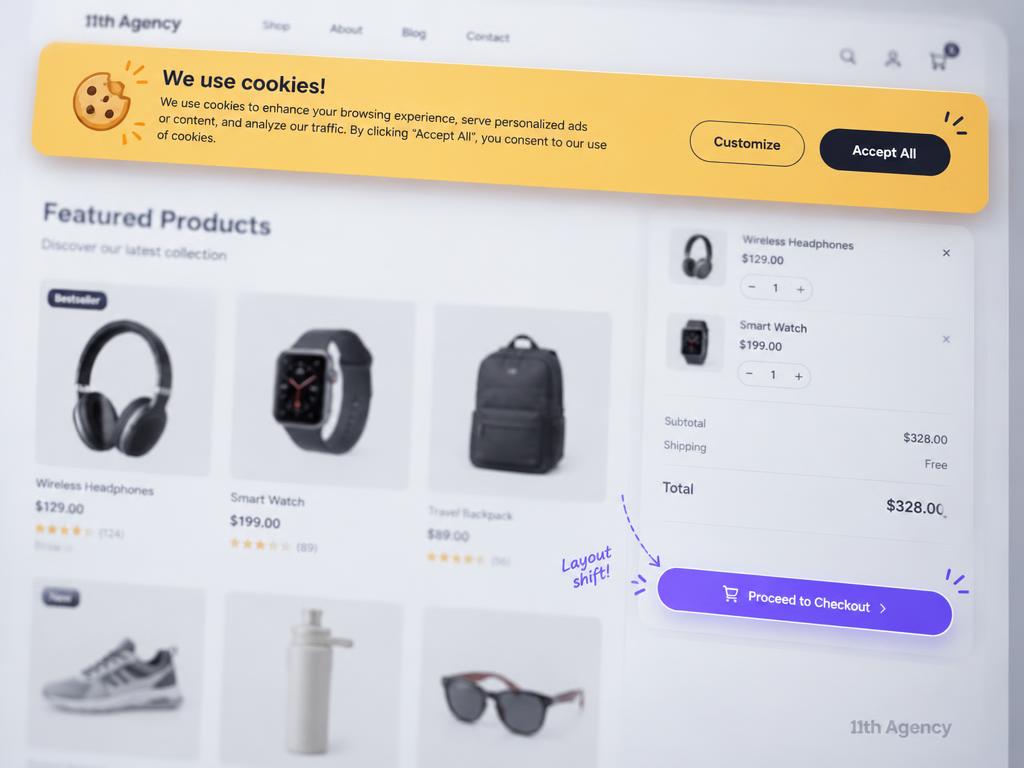
A checkout button that loads late and pushes down the form causes a shift. A cookie banner that slides in above the content pushes text down the page. Good visual stability keeps shoppers from tapping the wrong button. A better conversion rate on your website often follows fewer shifts.
Animating top or left causes layout shifts, because the browser must redo the layout. Animating with transform translateX or translateY does not, so use transform for slides and moves. To improve a CLS score, reserve space for late content and animate with transform.
Record the element that shifts in a performance test, since the fix depends on which element moves.
Getting the LCP Resource Discovered and Loaded Early
For most mobile pages, the Largest Contentful Paint element is an image, so check the image first. In the 2024 Web Almanac, 73% of mobile pages had an image as their LCP element. To improve an LCP score, load that image early and at high priority.

Making the LCP Image Discoverable in the HTML
Browsers find images through the HTML, so the image URL must appear there. In 35% of LCP images, the source URL was not discoverable in the initial HTML.
- The image URL appears in the HTML source, not only in a script.
- The image tag has no loading=”lazy” attribute.
- The image does not wait behind a data-src attribute.
A data-src attribute hides the image from discovery until JavaScript runs. That delay can push the LCP past 2.5 seconds.
Setting Priority on the LCP Element
Remove loading=”lazy” from the LCP image, then add fetchpriority=”high” so the browser loads it first. Only 15% of eligible pages used fetchpriority, so this step is often missed.
CSS background images need a preload because the browser finds them late. Preload the LCP image in the page head when it comes from CSS.
Removing Delays That Hold the Image Back
Poor-LCP pages showed 1,290 milliseconds of client-side delay at the 75th percentile. The resource load delay shows how long the browser waits before it starts downloading the image.
Reduce server response time and remove render-blocking requests. Confirm in the HTML source that the LCP image URL appears without any JavaScript running.
Cutting Time to First Byte With Caching and a CDN
The browser cannot load any part of the page until the first byte arrives, so slow first bytes delay the LCP. Time to First Byte (TTFB) is the wait before that first byte reaches the browser.
A CDN, or content delivery network, stores copies of files on servers closer to visitors. The Web Almanac found that only 33% of HTML document requests were served from a CDN. Caching keeps a saved copy, so the server does not rebuild the page on every visit.
Cache static HTML, even for a short time, so repeat visits skip the origin server. Faster server response helps every visit, not only the first one. TTFB can also be slow because the origin responds slowly, even when the CDN is close.
A news site with a slow origin can cache its HTML for a short time. That choice accepts that a story may be a few minutes old. Move dynamic logic to the edge where the CDN supports it, so personal parts run closer to visitors.
Check that the HTML document itself is cached at the edge before adding more tuning.
Setting Dimensions and Stable Space for Page Elements
An image with no width and height starts at zero pixels tall, so everything below it moves when it loads. Set explicit dimensions on every image, video and iframe to avoid a layout shift.
Sizing Images, Videos and Iframes
In the Web Almanac, 66% of pages had at least one unsized image. Use the width and height attributes, or set an aspect ratio in CSS, so the box keeps its shape.
- Look for img tags with no width or height attribute.
- Check every video and iframe for an explicit size.
- Confirm each ad slot has a min-height.
- Reload the page and watch for content that jumps.
Reserving Space for Ads, Embeds and Fonts
Ad slots and embeds load late, so reserve their space before they arrive. Set a sensible min-height on dynamic content, so a late banner does not push text down. Teams that build sites often share past work, and you can review it on the Portfolio page.
| Element | Fix | Effect |
|---|---|---|
| Images | Set width and height attributes | Browser reserves space before the file loads |
| Videos | Set an aspect-ratio in CSS | Player keeps its shape while loading |
| Iframes | Set explicit width and height | Embedded frame holds its space |
| Ad slots | Set a min-height | A late banner cannot push text down |
A 2022 fix for the back-forward cache, called bfcache, eliminated layout shifts on back navigation. It produced the biggest CLS improvement of that year.
Keeping Interactions Responsive With Less JavaScript
A slow INP usually traces to a script that runs during a click, not to the click itself. Cut the JavaScript that runs during user input to reduce INP. Less JavaScript execution leaves the browser free to answer the tap.
A 2026 guide found that 43% of websites fail the 200 millisecond INP threshold. Any task over 50 milliseconds becomes a long task, and it can delay a response. Check the main thread during input in Chrome DevTools to see which tasks block a click.
Third-party scripts often hurt INP, since ads, chat widgets and analytics tags compete for the main thread. Run a tag manager audit and list every tag with its owner. Better responsiveness starts when those tags stop running on every click. Interactive parts such as menus and forms need careful web design work.
Code splitting loads only the code a page needs, so each page runs less JavaScript. Use the coverage tool in Chrome DevTools to find unused code.
Remove any tag with no current use before you optimize the rest.
Building an Action Plan for Multiple Failures
A written plan with one owner per failing URL group stops fixes from competing. Write the action plan as a short table with one row per failing metric.
| Metric | Top URL | Fix |
|---|---|---|
| LCP | Product page template | Preload the hero image |
| INP | Checkout page | Remove an unused tag |
| CLS | Article template | Set image dimensions |
The priority list follows traffic, then metric, then effort. A 2026 guide linked a 0.1-second mobile load improvement to an 8.4% higher retail conversion rate across 37 brands. Teams without spare developers can hire help through web development services.
Core Web Vitals fixes often wait for release days, so name the release that carries each one. Owners should review the plan after each release, since one fix can change the next priority. Assign the first fix a date and a named owner before the next release.
Measuring Progress After Each Fix
Field data for a fix takes about four weeks to fully reflect the change. Improved data starts to appear within two or three days, once the fix enters the window.
Why Field Data Lags Behind a Fix
PageSpeed Insights field data represents the previous 28-day collection period. CrUX data updates daily, with the collection period ending yesterday or the day before.
CrUX History data updates weekly on Mondays. CrUX Vis gives a new point every 7 days.
- Days 2-3: improved data may first enter the 28-day window.
- Day 7: about a quarter of the window is after the fix.
- Day 14: about half of the window is after the fix.
- Day 28: the window is fully refreshed with post-fix data.
Checking Lab Results Before the Field Data Updates
Lab data from Lighthouse shows results in a simulated setting, so it changes right after a release. Run a test after each release and note the LCP, INP and CLS values.
Monitoring works best with a written log. Keep a before and after record with dates and release notes, so each field change matches one fix. Good progress tracking makes the next priority easier to choose.
Log the date of every release so you can match each field change to a fix.
Common Mistakes When Fixing Several Core Web Vitals at Once
Fixing every failing URL at the same time often splits effort across pages that never reached Poor. Priority fixes work better when one template gets the whole team’s attention.
A good Lighthouse result does not necessarily mean real-user Core Web Vitals are good. One of the common mistakes is fixing a lab score instead of the field value.
Field data, not the lab score, decides whether a fix worked.
PageSpeed Insights may show origin-level data or no field data for low-traffic URLs, so testing those pages can mislead you. Changing a CDN before checking the origin hides the real cause. A slow origin still delays the first byte, even behind a faster CDN.
Rewriting the whole frontend is rarely the first fix, even for teams using frontend frameworks. Fix one metric on the highest-traffic template before starting the next.
Conclusion
Triage starts with traffic, then metric, then effort. Work through the failing groups in that order, and fix the worst metric on the highest-traffic template first.
One clear fix beats a long list of guesses. Open the Search Console Core Web Vitals report today and pick the highest-traffic failing group.