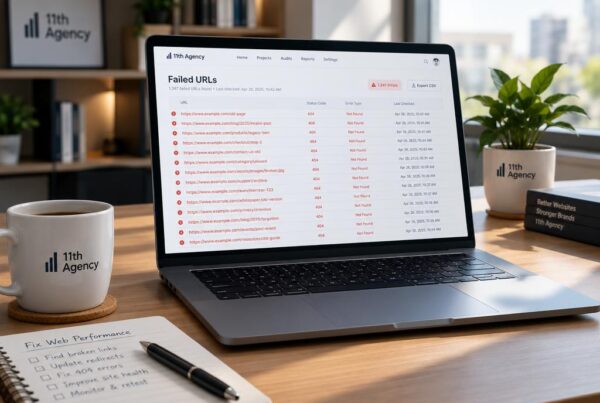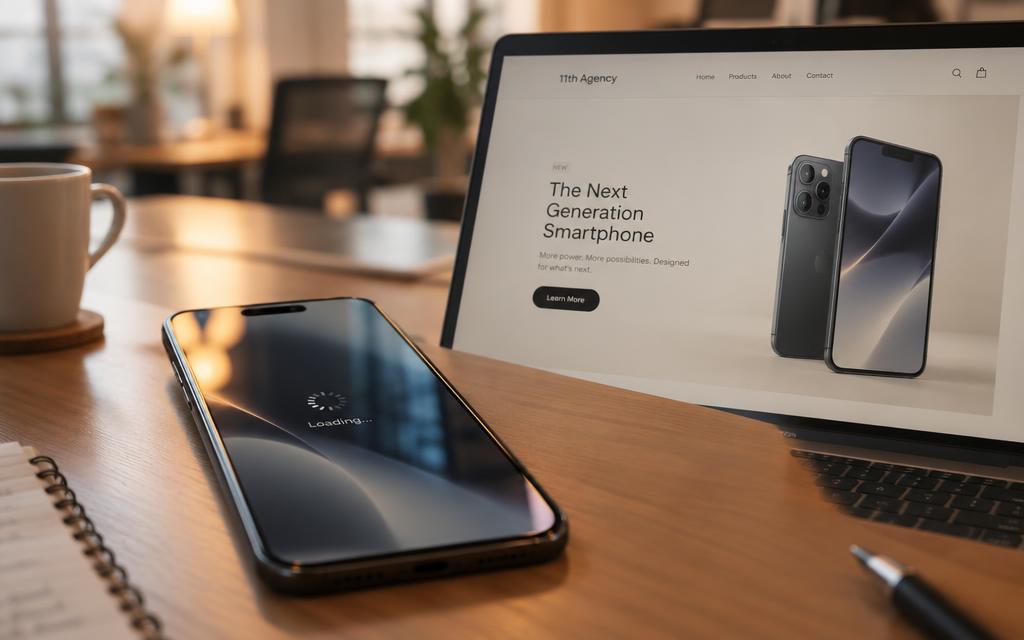
Could one heavy photo make a shopper leave a store page before it loads? A product photo that weighs 4 MB can keep a shopper staring at a blank space for several seconds. On a phone with a weak signal, that wait can feel much longer.
Images often make up about a third of the bytes on a typical web page. When the pictures are heavy, the whole page slows down, and the buyer may never reach the price or the Add to Cart button. More than half of mobile visitors leave a page that takes over 3 seconds to load.
Slow loading pages cost sales in a simple way. Each second of waiting gives a website visitor one more reason to press the back button. Shrinking the largest photo first often gives the biggest gain in page load time.
Key Takeaways
- Heavy images are often the largest part of a slow page.
- More than half of mobile visitors leave a page that takes over 3 seconds to load.
- Smaller images help visitors wait less and can help sales.
- Resize first, then compress, then check the result.
- Remove hidden metadata when privacy or file size matters.
Why Image Size Decides How Fast a Page Loads
Each byte an image adds must travel to the visitor’s device before the picture appears. A 4 MB photo holds about 4 million bytes, so a phone on a slow mobile connection may need many seconds just to download it. The page waits for that download before it can show the picture in full.
The file size of website images sets how long the download takes. Bandwidth is the amount of data a connection can carry in a set time. Site owners often pay for the data their server sends, so every heavy photo adds to the monthly bill.
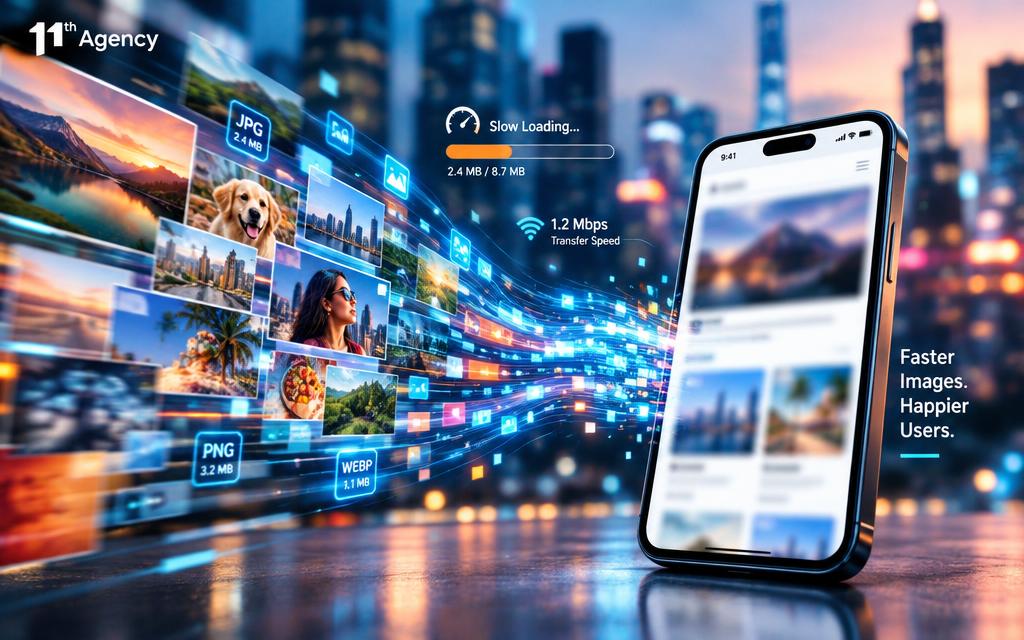
Speed also affects sales. Retail studies have measured about 8% more conversions from a page that is 0.1 seconds faster. Some teams combine faster images with ways to lift conversion rates through better user experience, because both steps remove friction for the buyer.
Google uses page speed and Core Web Vitals as a ranking signal. In practice, image compression for websites means sending fewer bytes to every visitor. One way to cut those bytes is lossy compression, a method that reduces file size by removing some image data, usually with a small visible cost that the encoder keeps low.
Smaller files load faster, and faster pages keep more visitors. Every byte an image adds is a delay the visitor feels.
How Image Compression for Websites Reduces File Size
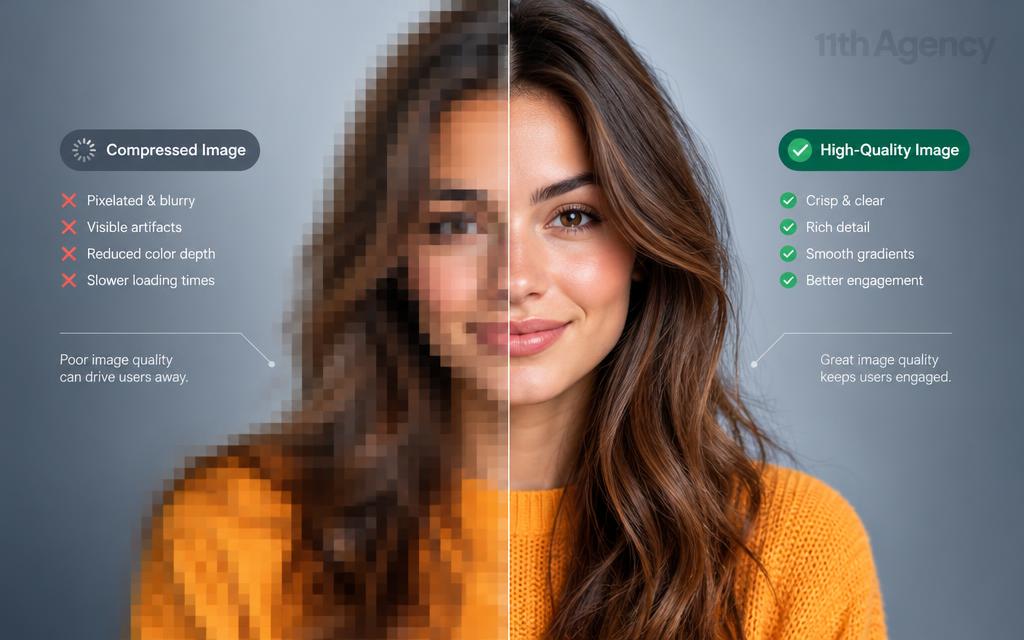
Most savings come from deciding how much detail a visitor can afford to lose. Lossy compression for web photos throws away fine detail that the eye rarely notices. Lossless methods keep every pixel, so they save less space but never change the picture.
Lighter pages also support search visibility, a point explained in a guide on how search engine optimized websites can bring in more traffic. The savings depend on the format and the setting you choose. No single percentage applies to every image.
Lossy Versus Lossless Compression
Lossy methods, such as JPEG, remove image data to make the file smaller. Lossless methods, such as PNG, rebuild the exact same pixels when the file opens. Lossy files are usually much smaller for photos, but too much compression adds blur and blocks.
| Format | Compression type | Transparency | Best use |
|---|---|---|---|
| JPEG | Lossy | No | Product and lifestyle photos |
| PNG | Lossless | Yes | Logos and sharp graphics |
| PNG-8 | Lossy palette step, then lossless | Yes | Simple icons with few colors |
| WebP | Lossy or lossless | Yes | Photos and graphics on modern browsers |
What Quantization Does to Colors
Quantization reduces the number of colors an image can use. PNG quantization can convert a 24-bit image to an 8-bit indexed palette of up to 256 colors. In many cases, the change is hard to see on a simple graphic.
Photos with smooth color gradients suffer more. The result can show banding, which looks like stripes in a sky or a shadow. Compression artifacts on product images, such as halos around a shoe or fuzzy text on a label, tell the buyer that the file was pushed too far.
Choosing a Format for Each Web Image
A photo of a jacket and a logo with a transparent background need different formats. The jacket photo fits a lossy format, while the logo needs sharp edges and partial transparency. Picking the right format first saves more time than tuning settings later.
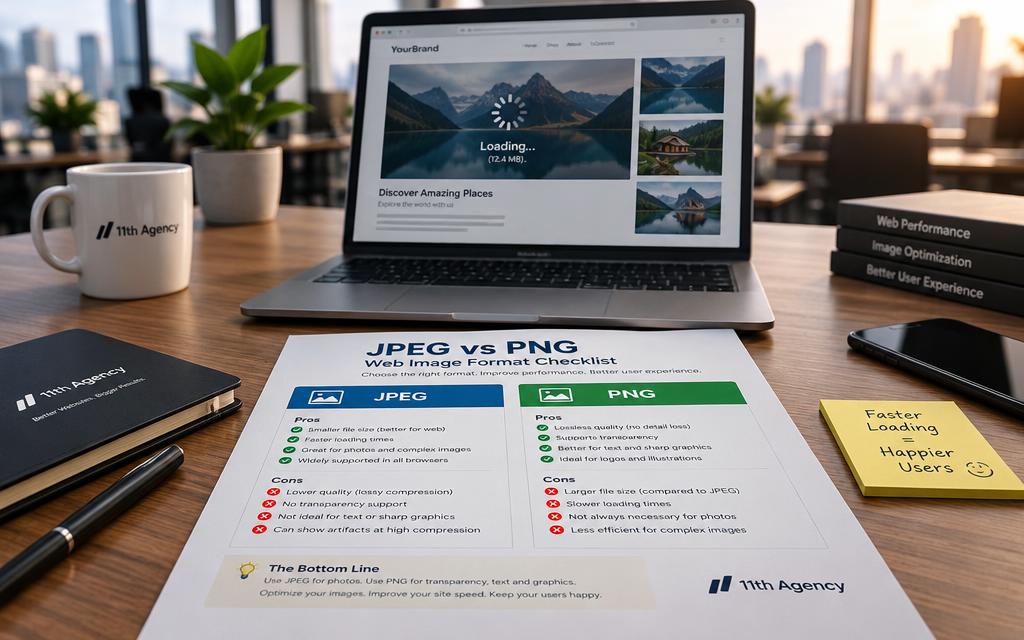
WebP typically yields files about 25-35% smaller than JPEG at comparable visual quality. PNG is the widely supported format for true partial transparency. AVIF can be smaller still, but not every editor or older browser handles it yet. The choice of webp avif for websites depends on who your visitors are and which browsers they use.
Most teams still rely on jpeg png for web images because every browser reads them. Check each image against these four rules before you upload it:
- Photographs: use JPEG or WebP at a moderate quality setting.
- Graphics with transparency: use PNG or WebP with transparency turned on.
- Icons and flat logos: use PNG, because sharp edges look best.
- Animated images: use animated WebP and keep the number of frames low.
Phones often save photos as HEIC. Convert those files to JPG before upload, because many sites and browsers do not support HEIC well. With the format chosen, the next step is the workflow, and it starts with the pixel width.
A Step-by-Step Workflow for Compressing Images Before Upload
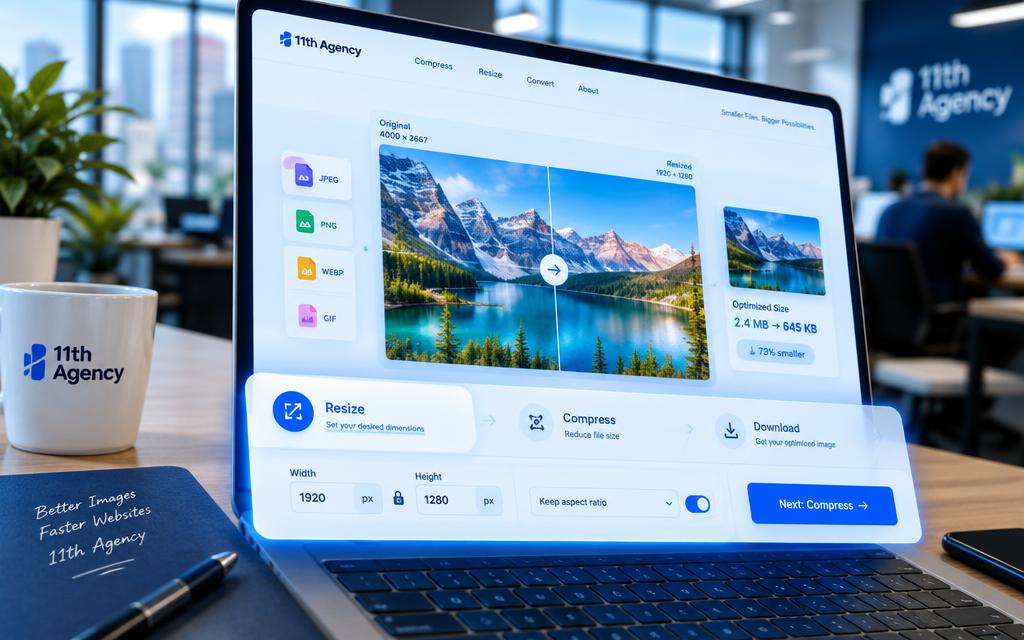
Resize the image to the width it will display at before you touch any quality slider. A product photo shown at 800 pixels wide does not need 4000 pixels of detail. Resize first, then compress, then check the result on a real screen.
Designers who build posters in tools such as Canva or Adobe Express often export files at a large size. A roundup of AI poster maker apps for quick visual designs can help you pick a tool, but the export size still needs a check. Use an image compressor for website uploads that lets you set the width and quality in one place.
Resize Before You Compress
Measure the space the image takes on the page. For sharp screens, many designers use about double that width, so an 400-pixel slot may use an 800-pixel file. Anything larger is wasted data that the visitor downloads for no visible gain.
Save a copy of the original before you resize. Keep the full-size file in a safe folder, because a resized file cannot be rebuilt at a higher quality later.
Set Quality and Check the Result
For JPEG files, a quality setting between 70 and 80 suits most product photos. Lower it only when the file is still too large after resizing. Move the slider in small steps and watch the file size change each time.
Zoom to 100 percent and look at text, edges and skin tones. Compare the new file with the original side by side. If the edges look fuzzy, raise the quality a few points and check again.
Hitting an Exact Size Like 20 KB
Target sizes under 150-200 KB are commonly used for product images. A 20 KB target usually needs a smaller pixel width and a lower quality setting. An image compressor to 20 KB for a web page works best when the width is set first.
| Pixel width | Target size | Quality setting |
|---|---|---|
| 1600 px | 150-200 KB | 75-80 |
| 1000 px | 80-120 KB | 70-75 |
| 600 px | 40-60 KB | 60-70 |
| 300 px | About 20 KB | 50-60 |
Use these rows as starting points, not fixed results. Test each file, because a busy photo with fine texture needs more bytes than a plain product shot. Once the size is right, the file still needs a check of its hidden data.
What Metadata Removal Means for Your Files
Most photos carry a hidden record of where and when they were taken. This record is called metadata, and it lives inside the file next to the picture. Compression tools often remove part or all of it.
Information Stripped From Photos
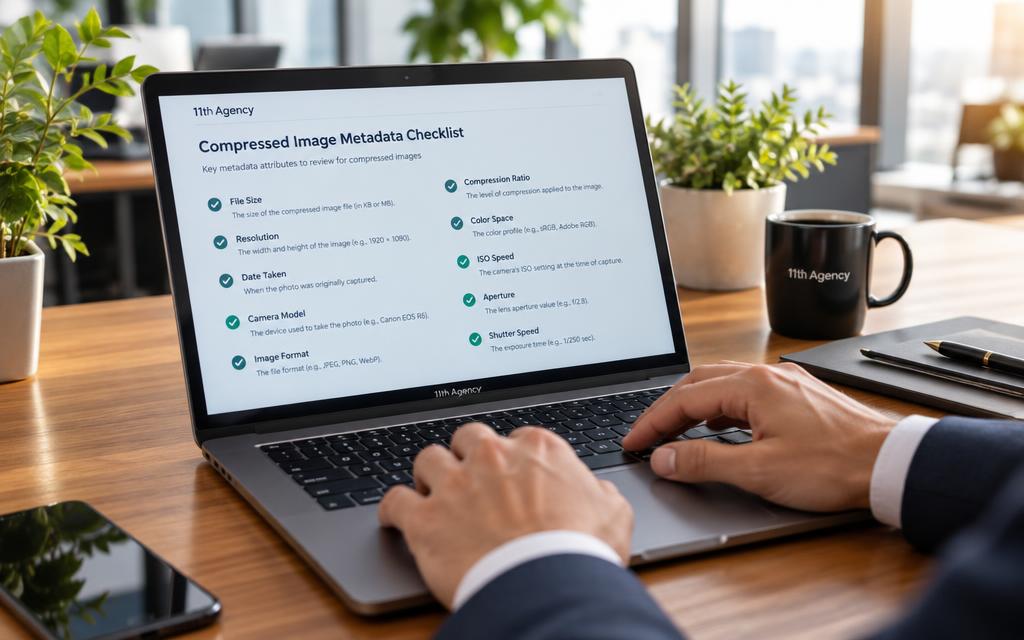
Compression tools commonly remove EXIF, GPS and camera data. Removing these fields can change dpi and color profile values, so a printed copy may look different from the screen version. For most web pages, the visitor never sees these fields at all.
Check these four metadata types before you upload:
- Camera model: the device and lens used for the shot.
- GPS location: the place where the photo was taken.
- Copyright notice: the name of the owner and the license terms.
- Color profile: the setting that keeps colors consistent across screens.
When to Keep Copyright and Location Data
Keep the copyright notice when you own the photo or license it from a photographer. Remove GPS data before publishing, especially for photos of a home, a staff member or a private workspace. For broader rules on visitor information, read the privacy policy for website visitor information on a site you trust.
Keep the color profile when product colors must match across devices. A shade of blue on a sneaker can look wrong without it.
Remove location data before you publish, and keep the copyright notice when you own or license the photo.
A clean, correctly sized file loads fast and reveals less about its source. The heaviest image on your site is the best place to apply these steps.
Conclusion
A single oversized image can slow an entire product page. Smaller images cut load time for every visitor, and they lower the data bill your site pays each month. Both gains show up in the same place, on the page where a buyer decides whether to stay.
Your next step is small. Pick one slow page, resize its largest image to the width it displays at, compress it, and measure the load time before and after. Start with the heaviest image on the site.