Have you ever opened a dashboard and spent five minutes looking for one number? Many managers do this every morning, and it wastes time they do not have.
Picture a sales manager who opens a dashboard with twelve charts. She wants one answer: did last week’s sales beat the goal? The answer sits in the fourth chart, buried between lines she does not need.
A good data visualization is judged by one test. Can the viewer find the answer quickly? If not, the visual is decoration, not help.
A dashboard is one screen that groups several charts for one audience. Each chart should help that audience make a choice, not add noise.
Visual hierarchy means the order in which the eye picks up elements on a page. The most important element should be read first.
Before a designer builds anything, three questions need clear answers. Who is the audience? What decision do they face? Which message matters most? Clear answers to these questions give insights for viewers instead of more charts.
The steps below run in order. They start with planning, move to choosing chart types, and then cover layout, color, text and common errors.
Key Takeaways
- Start with the viewer and the decision they face.
- Give each view one clear message.
- Pick a chart type that matches the question.
- Put the main answer in the top left corner.
- Label axes, start bars at zero and test with a real viewer.
Start With the Audience and the Decision
The audience comes first. A dashboard works only when it answers a question that a specific viewer faces. Name that viewer before choosing any chart.
Good planning ties each dashboard to a decision that comes up on a regular schedule. The decision may come up daily, weekly or monthly. A decision that needs a yes or no answer is the easiest to design for, because the view can point straight to it. These are core data visualization best practices for planning.
Pick the decision first. The chart comes only after the decision is clear.
Naming the Audience and Their Question
Start by naming one viewer. A regional sales lead and a chief financial officer need different things from the same numbers. Write down the role, the question and how often that person looks.
A viewer who checks the dashboard every day needs fast signals. For example, that person may need to know whether today’s orders are above or below plan. A viewer who reads a monthly report has more time for trends and context.
Turning a Goal Into One Message
A goal such as “improve sales” is too broad for a chart. Turn it into one message, such as “Western region sales fell below plan this month.” The message tells the designer what the view must prove.
One message per view keeps the viewer focused. If a view tries to say three things, split it into three views or cut two of them.
Five Steps From Planning to Build
Five planning steps turn a goal into a build plan. Teams that follow these data visualization steps for business audiences move through them in order.
- Identify the viewer: name the role and how often they look.
- List their questions: write each one in plain words.
- State the decision: say what the viewer will do with the answer.
- Name the one message: pick the single point the view must make.
- Note follow-up questions: record what the viewer will ask next.
Skipping the second step often leads to charts that answer questions nobody asked. Each step adds a little work now and saves rework later. With the question written down, the next choice is the chart type that fits that question best.
Choosing the Chart Type for Each Question
A bar chart compares categories. Use it when the viewer asks which region sold the most or which product lost money. Effective data visualization examples start with the question, not with a favorite chart type.
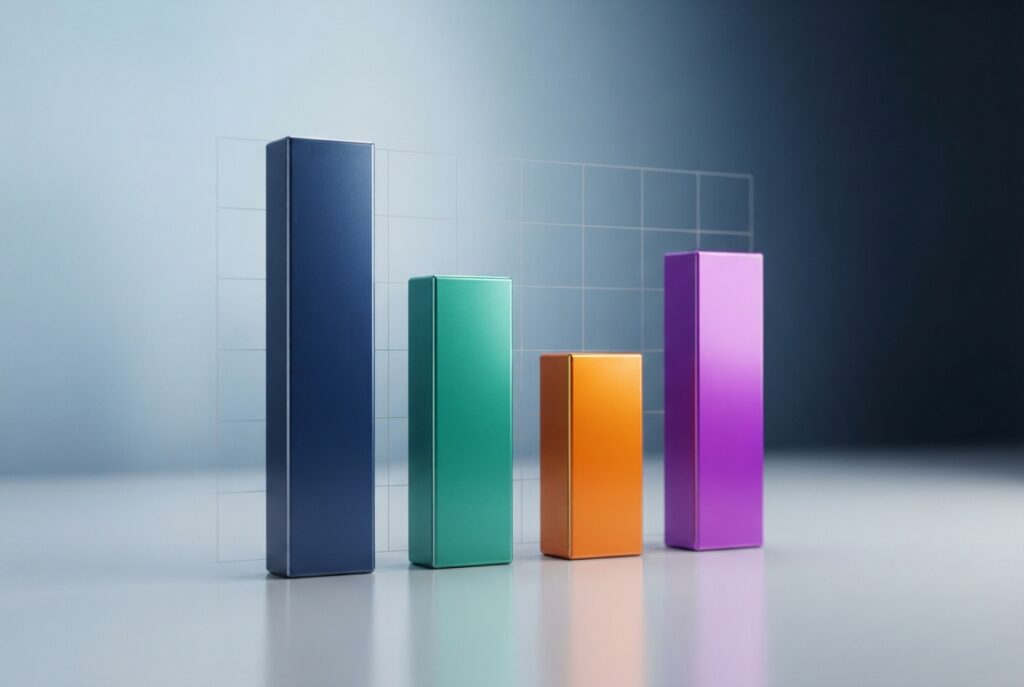
Picture a bar chart with four bars: North, South, East and West. Each bar shows one region’s sales for the quarter. The viewer sees the leader in one glance. This is a bar chart for category comparison at its simplest.
A line chart is the right pick for change over time. Put dates on the horizontal axis, such as weekly sales for one year. The rising or falling line shows the trend without extra words.
Pie charts show parts of a whole, but only with a few slices. They work best with fewer than about seven categories. Beyond that, the slices are hard to compare, so a bar chart is usually the better choice.
Scatter plots show whether two numbers move together. Histograms show where data clusters, such as the most common order sizes. Bullet charts show progress against a goal, and they were designed to replace gauges and meters that take up too much room.
| Chart type | Best question | Limit |
|---|---|---|
| Bar chart | Which category is largest? | Long labels need room |
| Line chart | How has it changed over time? | Gets messy beyond about five lines |
| Pie chart | What share does each part hold? | Fewer than about seven slices |
| Scatter plot | Do two values move together? | Needs two numeric measures |
| Bullet chart | Are we on track for the goal? | Shows one measure at a time |
With the chart chosen, the next task is placing it on the screen. Position decides whether the viewer sees that chart first or last.
Arrange Layout and Color So Patterns Are Clear
The top left corner is read first. Most viewers in the United States scan from left to right and from top to bottom. Put the answer to the main question in that corner.
For real examples of interface design, the 11th Agency featured branding, website and app projects show how teams present screens to users.
Placing the Most Important View First
Limit the dashboard to three or four views. More views force the viewer to decide where to look first. A light border can group related filters, so the viewer sees which controls belong together.
Larger views near the top carry more weight. Smaller supporting views fit below or to the side of the main answer.
Using Color With Restraint
Color should carry meaning, not decoration. Use one accent color to highlight the value that matters most. Follow these color rules on every dashboard:
- Highlight one value with a single accent color.
- Use a sequential palette for ordered numbers, from light to dark.
- Use a diverging palette around a midpoint, such as zero.
- Use distinct colors for unordered categories.
- Use the same color for the same category on every view.
Color also carries expectations. A temperature map that uses red for heat and blue for cold matches what most viewers already expect. A single color or too many shades of one color make data blend together.
Consistent colors also build recognition, a point the SaaS Branding page on brand identity for software companies makes clearly. Some viewers cannot tell certain colors apart, so the palette needs a second check.
Make the Dashboard Readable for Everyone
Viewers who cannot tell two red bars apart lose the message. Think of a store manager who sees two bars in nearly the same red and cannot tell which store is ahead. Readable dashboards cannot depend on color alone.
Clear navigation and visible actions help every user, as the page on improving conversion rate through user experience explains. The same ideas apply to dashboards.
Color Vision and Contrast
About one in twelve men has some form of red-green color deficiency. Red and green bars can look alike to them. Check that every chart works in grayscale before release.
Check the contrast between the data and the background. Dark text on a light background is the easiest to read.
Patterns, Icons and Labels
Pattern fills, such as stripes or dots, separate series even when the colors look the same. Text labels and icons add meaning that color cannot carry. A warning icon next to a number shows status at a glance.
Two near-identical shades are a common trap. Teal and dark green may look different on a good screen but blend together on a weak projector. Use checks like these before release:
- Check contrast between the data and the background.
- Add pattern fills to series that differ only by color.
- Write text labels next to key values.
- Pair status colors with icons.
- Add tooltips that explain each number.
Interactivity That Viewers Notice
Filters, drop-downs and clickable charts help viewers dig deeper. Viewers often miss them unless the screen says so. Interactivity needs visible instructions, or the dashboard looks like a static picture.
Add a short line such as “Click a bar to see the store list.” That one sentence turns a hidden feature into an obvious next step.
Accessibility checks catch many errors, but not all of them. The next risk is a chart that looks clear yet still misleads the viewer.
Avoid the Mistakes That Mislead Viewers
A truncated axis exaggerates differences. When a bar chart’s axis starts at 90 instead of zero, a small gain looks huge. Bars with values of 91 and 92 would show one bar twice as long as the other.
Bar lengths match values only when the axis starts at zero. Viewers read the length of a bar as the size of the number, so the baseline must be honest.
Truncated Axes and Distorted Scales
Check every axis before release. Set bar charts to start at zero and label the scale with clear steps.
| Mistake | Effect | Fix |
|---|---|---|
| Truncated axis | Small gains look large | Start bars at zero |
| Too many views | Viewer cannot find the answer | Keep three or four views |
| Missing labels | Viewer guesses what numbers mean | Add a title, legend and axis labels |
| Inconsistent colors | Same category looks different | Assign one color per category |
| Unlabeled units | Numbers lose their meaning | Add units such as dollars or percent |
Information Overload and Missing Context
A missing legend or unlabeled axis leaves viewers guessing. A number with no time period, such as 4,200 orders, raises a question the chart never answers.
Add context near the chart. A short note can explain a dip, such as a holiday week or a price change. For more general design tips, the 11th Agency blog covers design and development posts across many topics.
Clear labels set up the next step, which is telling a story the viewer can follow.
Pick a Tool That Fits the Team and the Data
The right tool depends on who builds the dashboard. An analyst, a developer and an executive team each need different things. Choose the tool after that question is clear.
Tableau and Power BI are widely used general tools for dashboards. Excel is also widely used, and it builds basic charts well. Teams comparing data visualization tools for business teams often start with the tool their staff already know.
Common Tools by Use
Match the tool type to the user:
- Analysts: Tableau or Power BI, for exploring large data sets.
- Developers: open charting libraries such as D3.js, for custom web views.
- Executive reporting: Power BI or Excel, for simple summary screens shared with leaders.
Teams that need a custom web-based dashboard can look at custom web development services. This route suits groups without in-house developers. These tools fit data visualization tools for analysts who want control over the code.
Questions to Ask Before Buying
Ask four questions before you buy. Each answer narrows the field.
- Who builds the dashboard, and what skills do they have?
- Where does the data come from, such as a database or spreadsheet?
- How often must the data refresh: daily, hourly or live?
- Who needs to see it, and must it be shared outside the company?
Dashboards with live data often need a dedicated BI (business intelligence) tool. A spreadsheet can handle a weekly report, but it struggles with constant updates.
Once the tool fits, the last step is a short review before anyone relies on the screen.
Build a Repeatable Review Checklist
A checklist works best when someone uses it before every release. A regional manager once tested a new dashboard by reading only the first view. If that view did not answer the main question, the team knew the dashboard was not ready.
The test takes only a few minutes. It also shows gaps that a designer often misses, because the designer already knows what the charts mean. Texas State University’s visualization best practices and style guide also calls for a review step before release.
A dashboard that fails the first-view test is not ready. Fix the top left view before adding anything else.
Run through these six checks before each release:
- Does each view carry one message?
- Does the top left view answer the main question?
- Are colors the same for the same category on every view?
- Are axes labeled with units?
- Do bar charts start at zero?
- Has one real viewer finished the main task without help?
A dashboard that passes these checks is ready to share. The last question is whether it will help the people who open it.
Conclusion
The audience and the decision come before the chart. A viewer with a clear question finds the answer faster than one who faces twelve charts. Every design choice should serve that viewer.
Pick the dashboard’s most frequent decision this week. Sketch it on paper with one chart and one message, then show the sketch to a real viewer.