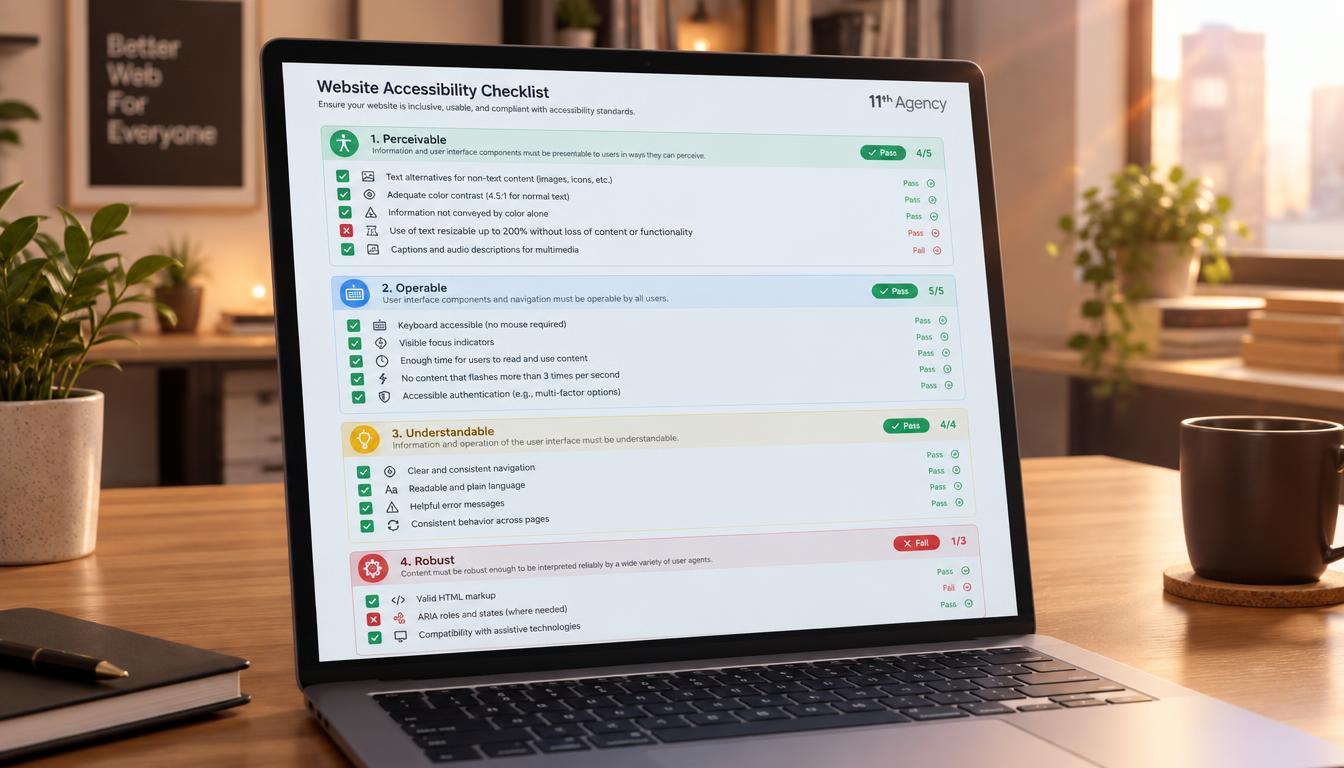
Can people who use a keyboard or screen reader finish a task on your site? A website accessibility checklist is a set of pass or fail checks that finds the failures users meet most often. Each check asks a yes or no question about one part of a page.
The checks follow the Web Content Accessibility Guidelines (WCAG), the accessibility standard that most U.S. public bodies use. Assistive technologies, such as screen readers, depend on the code behind a page to read it aloud or move through it.
This checklist covers the first checks a site owner can run in an afternoon. It is written for site owners, developers, content editors and marketers. Each check maps to one or more WCAG success criteria.
No checklist makes a site fully accessible, and no site is ever 100 percent accessible. Passing these checks means the most common failures are gone, not that every barrier is removed. Alt text is the short written description a screen reader reads aloud in place of an image.
The checks are grouped by area. The first group covers text alternatives for images, which is where many audits begin.
Key Takeaways
- A website accessibility checklist uses pass or fail tests to find common failures.
- No site is ever 100 percent accessible, so checks are a starting point.
- Every meaningful image needs alt text, and decorative images need an empty alt value.
- Keyboard users need a visible focus state and a logical focus order.
- Automated scans miss many issues, so manual testing is needed too.
- Fixing the six most common failures gives the fastest gain.
Check Every Image Has Useful Alt Text
The test is simple: turn off images in your browser and read what remains. A screen reader user should get the same meaning from each image that a sighted visitor gets. Meaning is the goal, not a perfect description of every pixel.
A web accessibility checklist for designers starts with the image tags in the page code. Every img element needs an alt attribute. If the attribute is missing, the check fails, even when the image looks fine on screen.

Compare two descriptions of one photo. “Football player scoring a goal” says little about the moment. A stronger version names the scorer, the match and the moment, such as “striker celebrating the winning goal in the final minutes of the county cup final.”
Decorative images add no meaning. A thin divider or a background swirl should use alt=”” so screen readers skip it. Text inside an image must also appear in the alt text, or the words are lost.
Section508.gov’s guide to alternative text advises short descriptions that avoid repeating nearby text and use the same language as the page. Section508.gov’s guidance on alternative text also gives examples for logos and controls.
Every meaningful image needs alt text. Every decorative image needs an empty alt value, so screen readers skip it.
A complex chart needs more than a short alt text. Add a text summary near the chart or on a linked page that gives the main trend and the key numbers. Visible text also needs to be readable, so the next check looks at color contrast.
Test Text Contrast Against Its Background
The required ratio for normal text is 4.5 to 1 under WCAG level AA. A contrast ratio compares the brightness of the text with the brightness of its background. Higher numbers mean the text is easier to read.
A contrast ratio check for buttons and icons follows the same math, but the required number is lower. Large text needs 3 to 1, and icons, input borders and focus indicators also need 3 to 1. The table shows the common cases.
Element | Required ratio | Level | Common failure
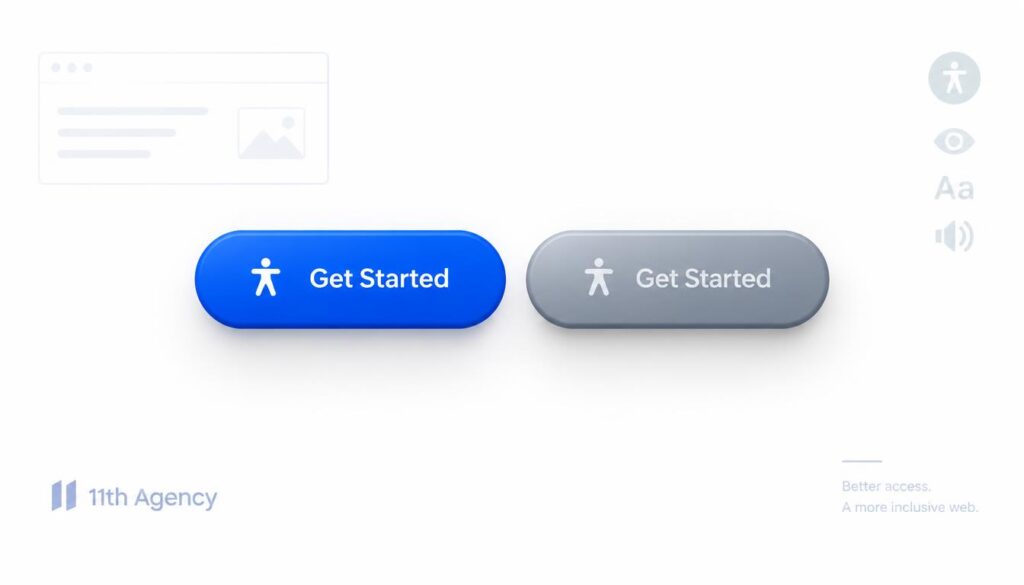
Normal text needs 4.5 to 1. Large text is 18 point or larger, or 14 point bold. Light grey text on a white background, such as #999 on #fff, often falls below the required ratio.
Text placed over a photo needs its own check. Test the lightest part of the image behind the words, because a bright patch can make the text hard to read. Custom selection colors also count, since a pale highlight can hide selected words.
Readable text helps people who can see the page. A keyboard user also needs to see where focus is, and that depends on a visible focus indicator. The next check covers keyboard use.
Make Every Function Work With a Keyboard
Watch where focus goes when you press Tab from the top of the page. Focus is the outline or marker that shows which link or control is active. If focus disappears or jumps around, a keyboard user is stuck.
Keyboard focus order on a web page should follow the visual layout, from left to right and top to bottom. Each check below takes a few minutes on a typical page. Run them all on the main templates first.
- Tab through all links and controls.
- Confirm visible focus on each one.
- Confirm focus order follows the layout.
- Remove hidden focusable elements.
- Confirm a skip link appears on focus.
Focus must never be trapped at one element. A user who enters a menu or a pop-up must be able to leave it with the keyboard. Autofocus also causes trouble, because it moves the cursor before a user can read the page, so avoid it on most forms.
Skip links are commonly expected at the top of a page. They let a keyboard user jump past a long menu to the main content. The skip link should be hidden until it receives focus, then become visible.
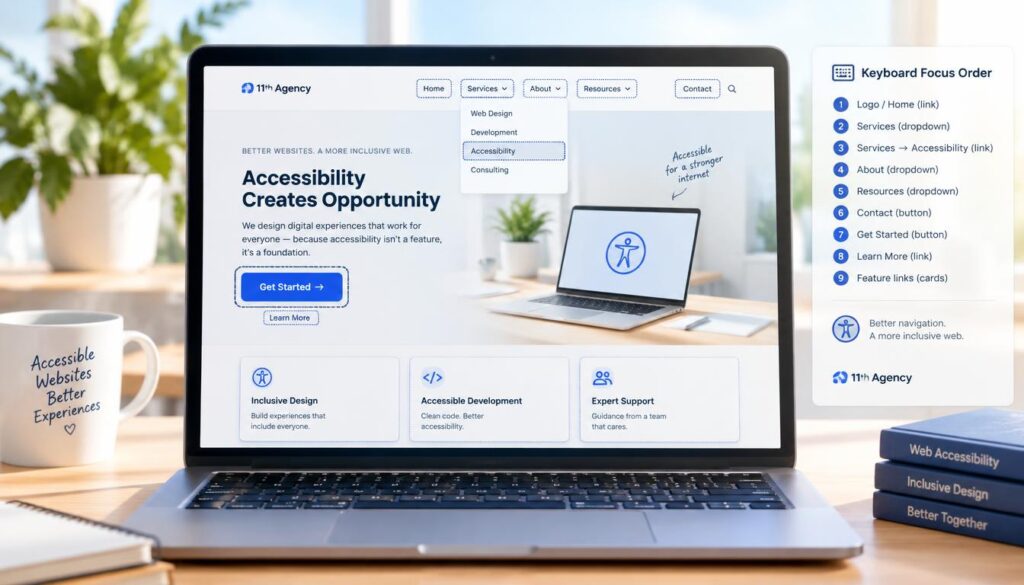
Keyboard users move through a page by its headings and landmarks, not only by Tab. Those structures must be correct before the keyboard pass can be trusted. The next check looks at headings.
Use Headings, Landmarks and a Page Title
Open the page and list only its headings; the list should read like an outline. A screen reader user often moves through a page this way, so a clear outline matters. Only the headings are needed for this test.
A unique page title for every page tells users where they are. The title appears in the browser tab and in screen reader announcements. Two pages with the same title confuse people who open several tabs.
Headings and Landmarks
Each page should have one h1 that names the main topic. Heading levels should not skip, so an h2 should not jump straight to an h4. Planning the site map and navigation early, as a team doing information architecture work does, makes headings easier to get right.
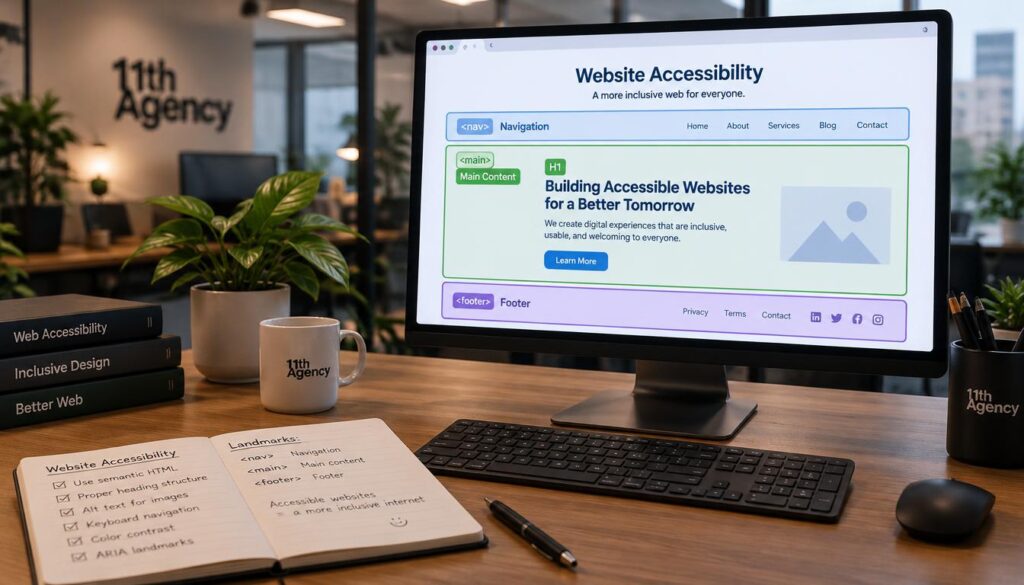
Landmark elements such as header, nav, main and footer give screen readers fixed regions to jump to. A page with a main landmark lets a user skip straight to the content. Missing landmarks fail the check because users have no shortcut to the main area.
Page Titles and Language
The html element needs a lang attribute, such as lang=”en” for English pages. Screen readers use this value to choose the right pronunciation. Without it, speech may sound wrong or be hard to follow.
Each page title should describe the page, such as “Return Policy | Example Store.” A title like “Home” repeated on every page fails. The next check moves to forms, where structure and labels meet.
Label Every Form Field and Its Errors
Click into each field and check that a visible label stays on screen. A placeholder that vanishes when a user types is not a label. Every form field needs a label that stays visible while the field is in use.
Form labels and error messages for web forms work together. A user should know what each field asks for, and what to fix when it is wrong. The table lists the checks and shows a pass and a fail example for each.
Check | Pass example | Fail example
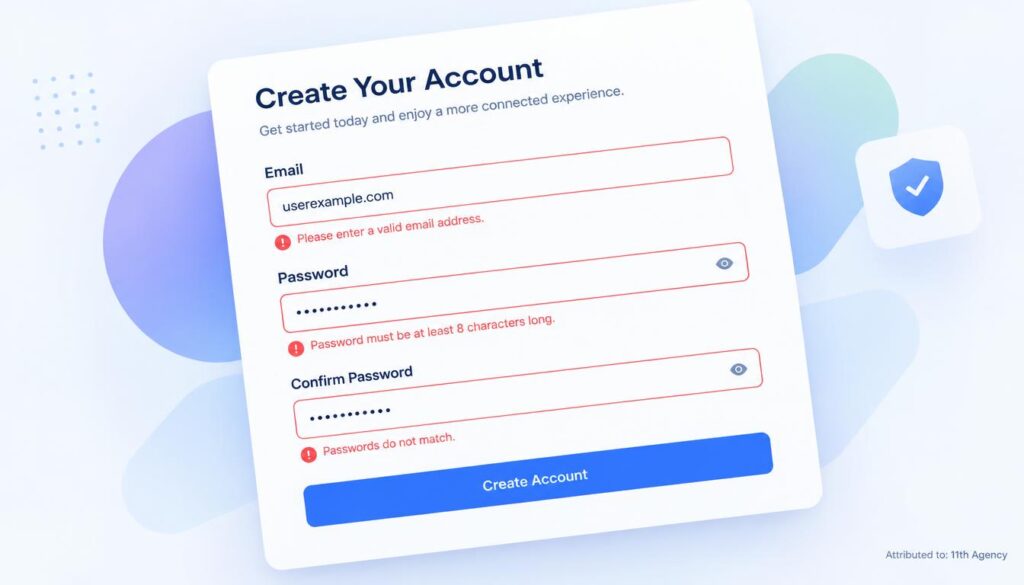
Errors shown only in red fail the check. Color alone does not tell a user with color blindness what went wrong. Each error needs text, and the text must link to the field it describes.
A form should also show an error summary near the top when a submit fails. The summary lists each problem and links to the field. Users can then fix every error without hunting through the page.
Group related choices with a fieldset and a legend, such as shipping options or contact preferences. Autocomplete attributes help users fill in names and addresses faster. The next check covers media, which has its own rules.
Check Captions, Transcripts and Autoplay
Play a video with the sound off and see whether the meaning survives. If the story, the steps or the warnings disappear, the media fails. Captions and transcripts give those words to people who cannot hear the audio.
Captions for prerecorded video must match the speech and show meaningful sounds, such as a doorbell or a siren. Section508.gov’s guide to synchronized media explains that captions must stay synchronized with the audio. The list gives the core media checks.
- Captions on every prerecorded video.
- Transcript for every audio-only file.
- No autoplay with sound.
- A pause control for every moving item.
- No flashing above three times per second.
An audio-only file, such as a podcast clip, needs a descriptive transcript. The transcript should name the speakers and include sounds that carry meaning. A transcript that only lists the spoken words misses part of the content.
Autoplay with sound startles users and can make a screen reader hard to hear. Media should wait for the user to press play. Live captions for webcasts are a separate requirement, so check them on their own.
Moving content raises its own questions about speed and control. The next check looks at motion, timing and session limits.
Control Motion, Timing and Session Limits
A carousel that keeps moving with no pause button is a typical failure. Users with attention or vision difficulties may not be able to read the slides before they change. Any moving content must have a way to stop it.
Session timeout warnings on websites tell users when their time is about to end. A user who fills out a long form can lose all of it when a session expires. The checks below cover both motion and time.
Moving Content
Moving, blinking or scrolling content that lasts over 5 seconds must be pausable. The control must be easy to find and use with a keyboard. A pause button placed below the fold does not help a user who has already been distracted.
Respect the reduced motion setting on a user’s device. The prefers-reduced-motion setting tells a site that the user wants less animation. Animations should stop or shrink when that setting is on.
Session Timeouts
Warn users before a timeout that could lose data. A warning should appear a few minutes before the session ends, and it should explain the choices. The user needs a clear way to stay signed in.
Users should be able to extend a session without losing their work. A button that says “Keep me signed in” is clearer than a vague message. Test the timeout by waiting, because a warning that never appears fails the check.
Time limits and motion both affect people who need more time to read or act. The next check looks at zoom and mobile layouts, which change how much content fits on screen.
Test Zoom, Reflow and Mobile Layout
Set the browser zoom to 200 percent and try to complete a form. Try the whole task, not only the first screen. A layout that breaks at this size often hides buttons or cuts off text.
Content should work at 200 percent zoom, and reflow should work at a width of 320 pixels without horizontal scrolling. Reflow means the content rearranges into one column instead of spreading wide. The table lists the usual tests.
Test | Expected result | Usual failure
Viewport zoom must not be disabled. A page that blocks pinch zoom on a phone fails, because low vision users need to enlarge the text. Horizontal scrolling at 320 pixels is also a failure, since users must scroll side to side to read each line.
Text spacing matters too. Users may increase line height, letter spacing and word spacing with their own settings. Boxes with fixed heights often clip the extra lines, so avoid them.
Testing on a real phone shows problems that a desktop window hides. The next check explains how to combine automated and manual testing methods.
Choose Automated and Manual Testing Methods
An automated scan finds some failures in minutes, but not all. Scanners catch missing alt attributes and low contrast, but they cannot judge whether alt text makes sense. A manual accessibility testing checklist fills that gap.
A good accessibility audit checklist mixes several methods. Run each method on each template, then repeat it after changes. The list gives a practical routine for a small team.
- Automated scan of each template.
- Keyboard-only pass through the main tasks.
- Screen reader pass on key forms.
- Retest after each content update.
- Independent review by a professional tester.
A screen reader pass means turning the reader on and trying a form or checkout from start to finish. Listen for labels that sound wrong or missing. Manual testing with a keyboard and a screen reader catches more issues than a scan alone.
A professional tester adds an outside view. Testers who did not build the site often notice confusing wording and unclear steps. Their review also helps the team when a complaint or audit arrives.
Testing finds problems, but some problems appear again and again. The next check shows which failures show up most often.
Start With the Failures Most Often Found
Six failures account for many of the problems found in audits. They are easy to spot and often cheap to fix. Start with these before anything else when time is short.
The Top Six Failures
A study by WebAIM found low contrast text, missing image alt text, missing form labels, empty links, empty buttons and missing document language as the most common failures. Those six were the most common web accessibility failures in its findings. Each one appears in the checks above.
- Low contrast text
- Missing image alt text
- Missing form labels
- Empty links
- Empty buttons
- Missing document language
Empty links and empty buttons often come from icon-only controls. A magnifying glass icon with no text gives a screen reader nothing to read. Add a link text or button label that names the action, such as “Search.”
Fixing Them First
Start with the lang attribute and alt text, because both are quick to fix. Adding lang=”en” to the html element takes seconds. Writing alt text for the main images on the home page takes a few minutes per image.
Next, fix missing labels and empty controls on the main forms and buttons. Then raise any text that fails the contrast ratio. Keep a short list of these fixes so the team can see progress.
Some failures need changes in the design, not just in the code. Writers and designers must learn the rules too, so the fixes stick. The next section covers how to keep those rules in place after launch.
Set Up Accessibility Documentation and Training
Write down who fixes a failure before the next release. A failure with no owner often stays open for months. Named roles keep the checklist results moving after launch.
An accessibility policy for a website sets the goal and the standard the team follows. The policy should name WCAG as the standard and state who approves exceptions. It also explains how often the site is checked.
Documentation should cover policy, roles, design rules, development rules, content rules, a testing procedure and maintenance. Design rules set colors and focus styles. Content rules cover alt text, link text and headings.
Writers need training on alt text and headings, because most content failures start with the writer. A short workshop with real examples works better than a long manual. Show a poor alt text next to a better one and let writers practice.
Every failure needs a named owner before the next release. Without one, the fix waits, and the same failure returns in the next update.
Maintenance keeps the work from slipping. Schedule a retest after every major release and each content update. The closing section explains the next step.
Conclusion
The fastest gain comes from fixing the six most common failures. Alt text, labels, contrast, empty controls and document language cover much of what audits find. A team that fixes these first can show progress within days.
Take the checklist into the next audit and keep the results where the team can see them. Each pass or fail result tells the team what to fix and who owns it. Over time, the list becomes a habit rather than a one-time project.
Your next step is simple: run an automated scan and a keyboard pass this week. Start with your home page and your main form, then write down every failure you find.